Create a Regular Vault
A Regular Vault runs validators and stakes assets.
Step 1: Select Vault Type
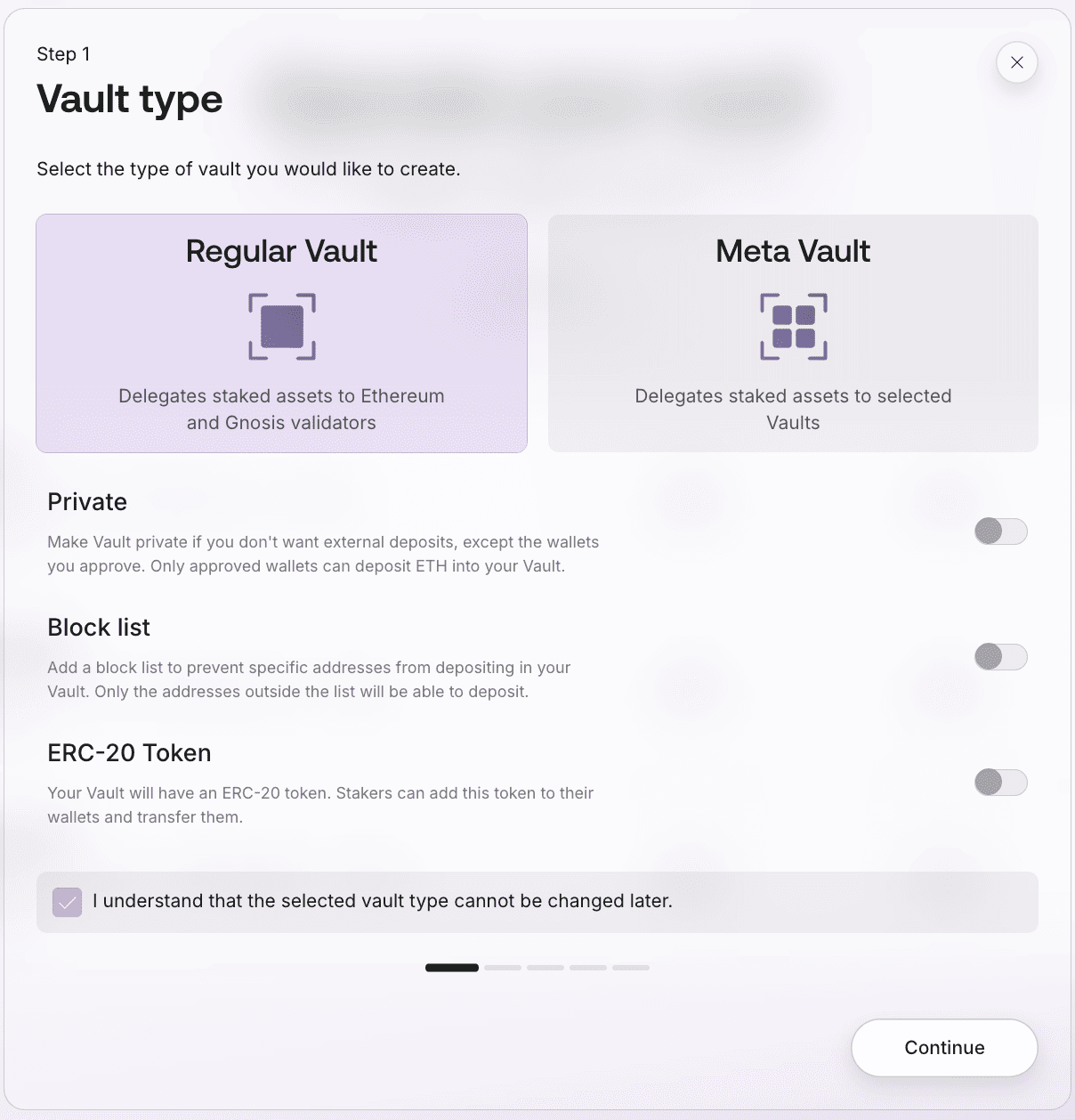
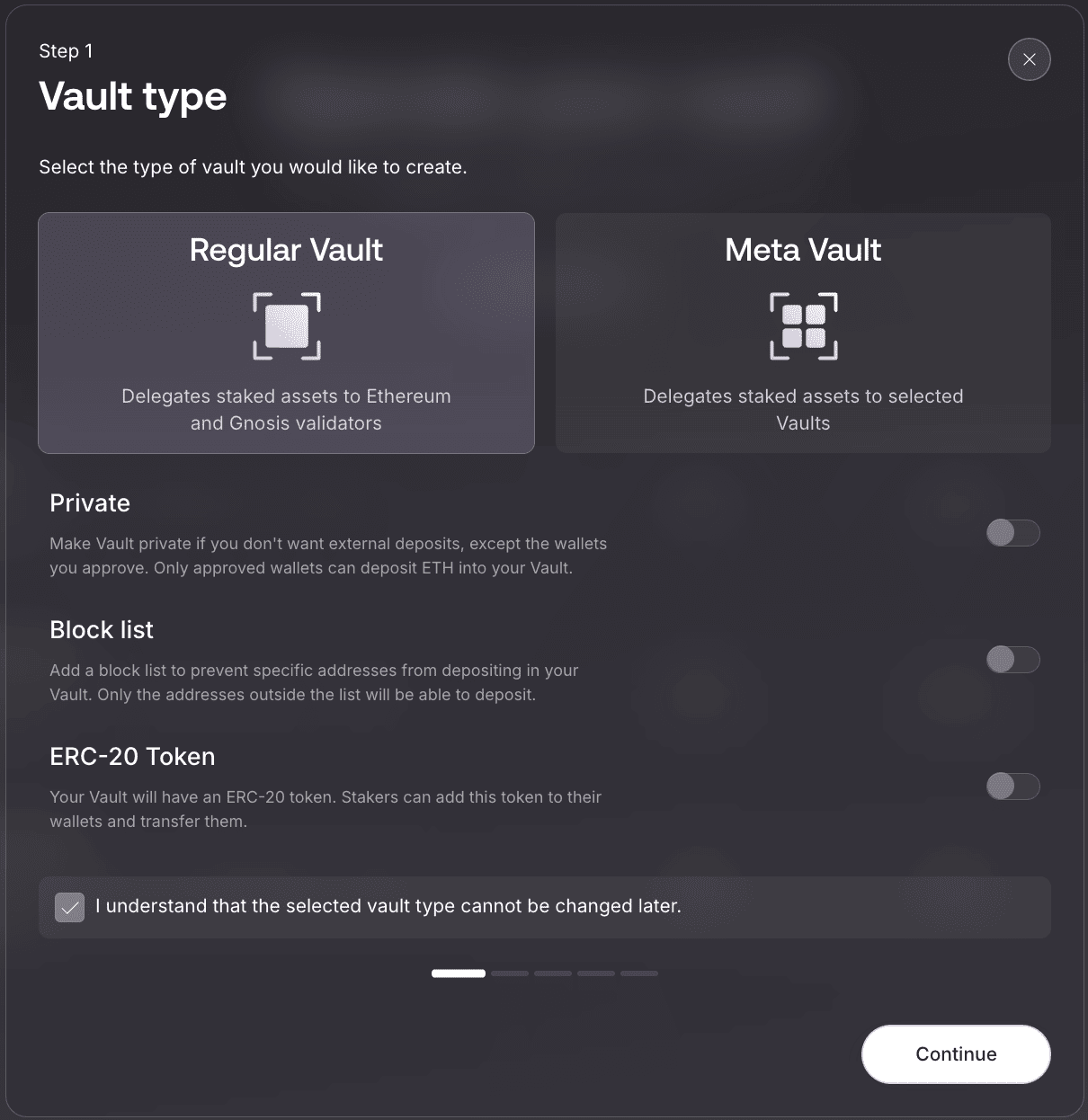
Select Regular Vault. You can optionally enable the following:
 Private — restrict deposits to approved wallets only
 Block List — prevent specific addresses from depositing
 ERC-20 Token — stakers receive a token they can hold in their wallet and transfer to others
 Required Acknowledgment
You must check "I understand that the selected vault type cannot be changed later" before proceeding.
Step 2: Configure Vault Parameters
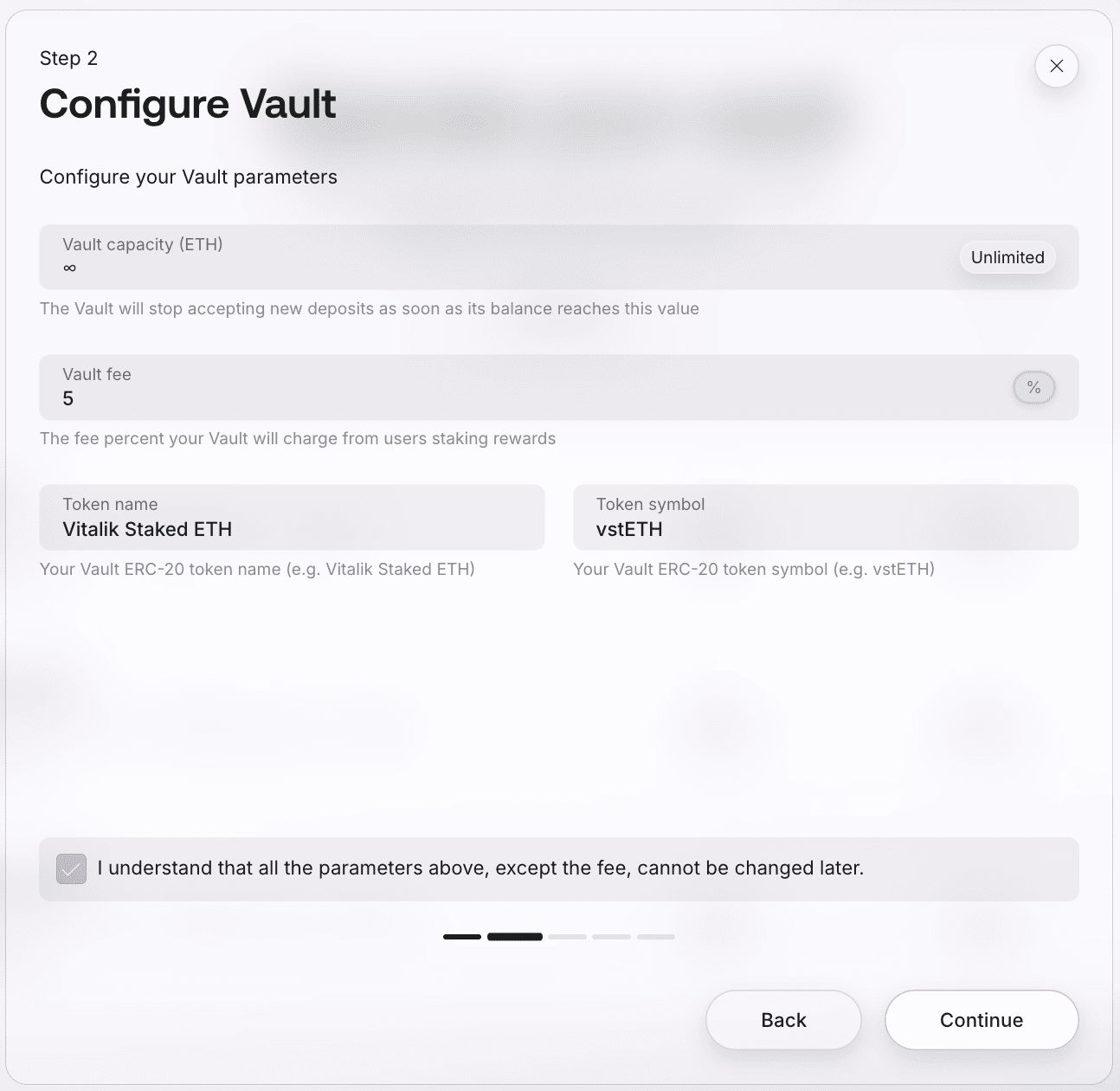
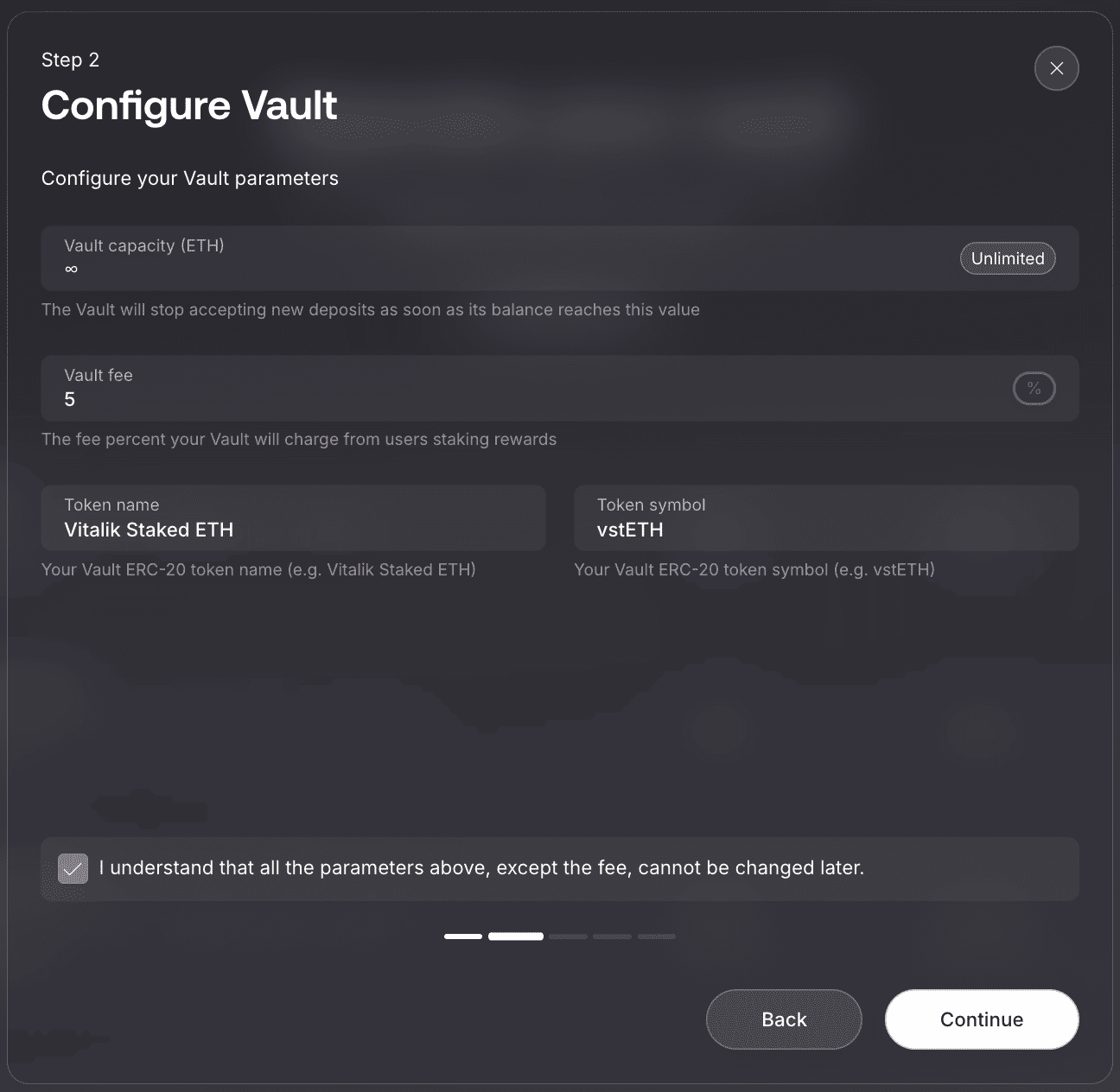
Configure your Vault parameters:
- Vault Capacity – Set maximum ETH capacity (default: unlimited ∞). Learn more →
- Vault Fee – Set the fee percent your Vault will charge from users staking rewards
 Vault Fee
The Vault Fee can be updated after creation. Learn more about fee →
If you enabled the ERC-20 Token in Step 1 →, you will also need to set:
- Token Name – Your Vault ERC-20 token name
- Token Symbol – Your Vault ERC-20 token symbol
Permanent Settings
All parameters above, except the fee, cannot be changed later. Choose carefully before proceeding.
Step 3: Block Rewards Destination
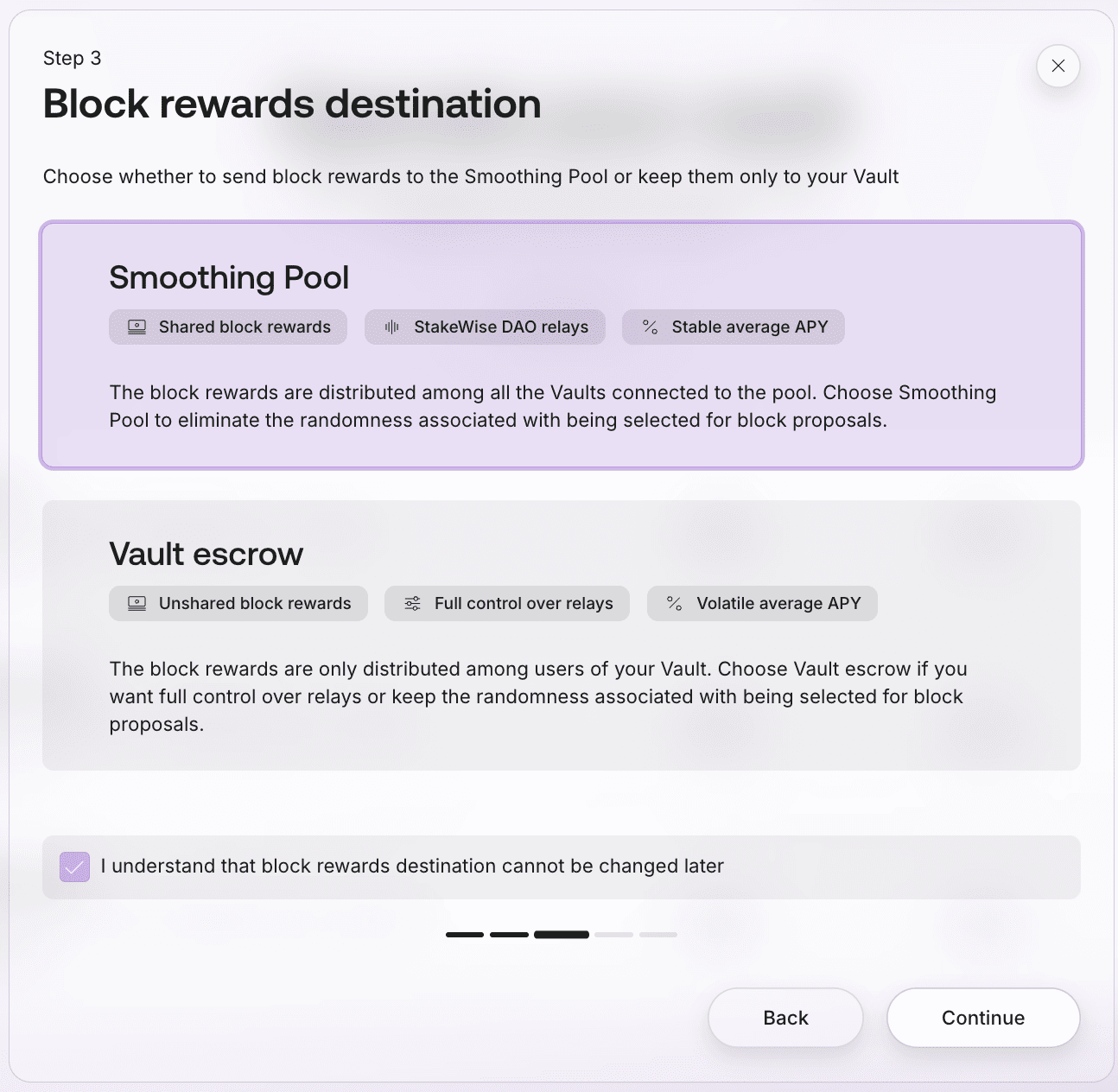
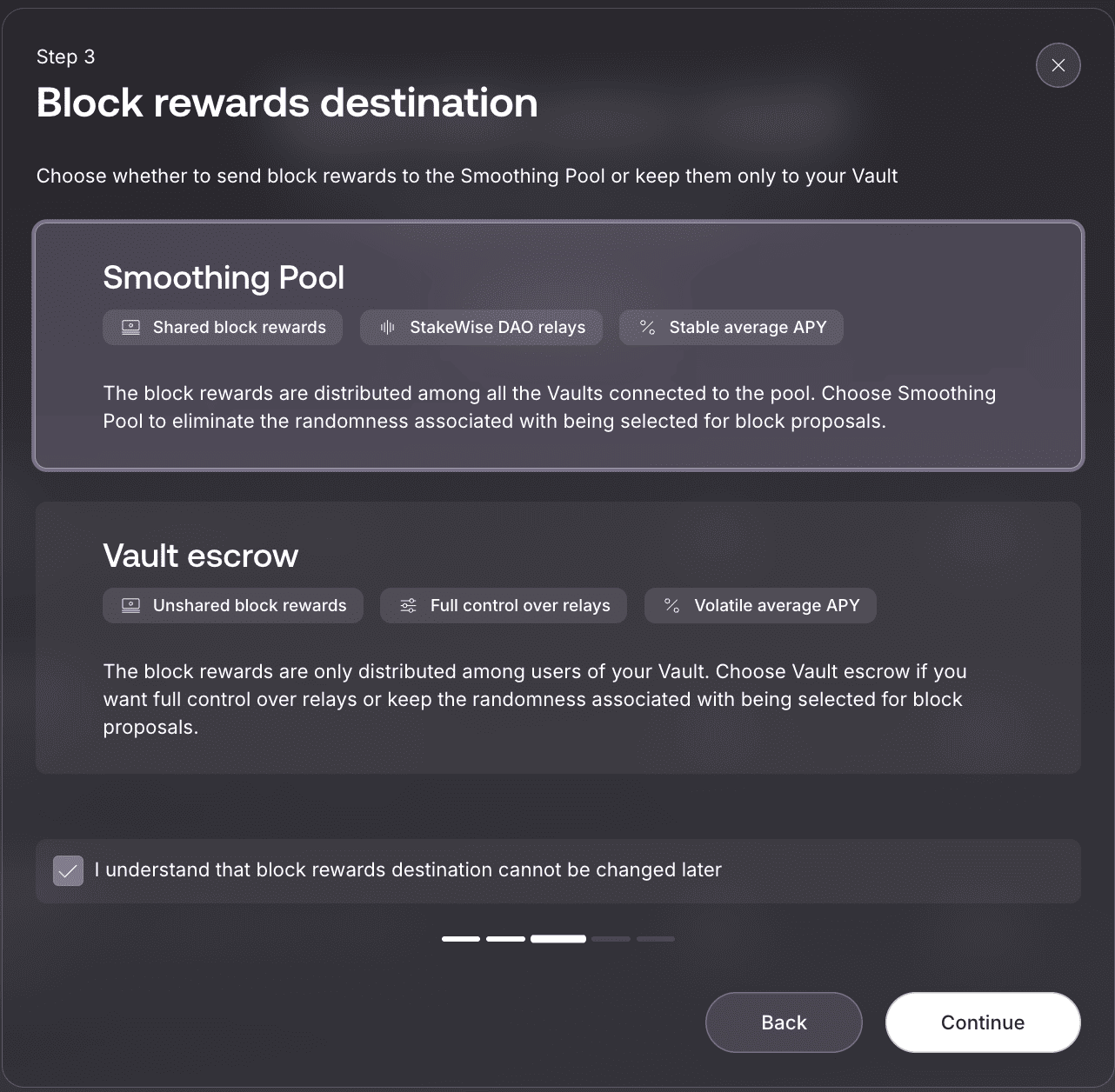
Choose how block rewards are distributed. This is a permanent decision.
Most operators choose Smoothing Pool → for stable returns, while Vault Escrow → gives you full control but with volatile rewards.
Required Acknowledgment
You must check "I understand that block rewards destination cannot be changed later" before proceeding.
Step 4: Add Branding
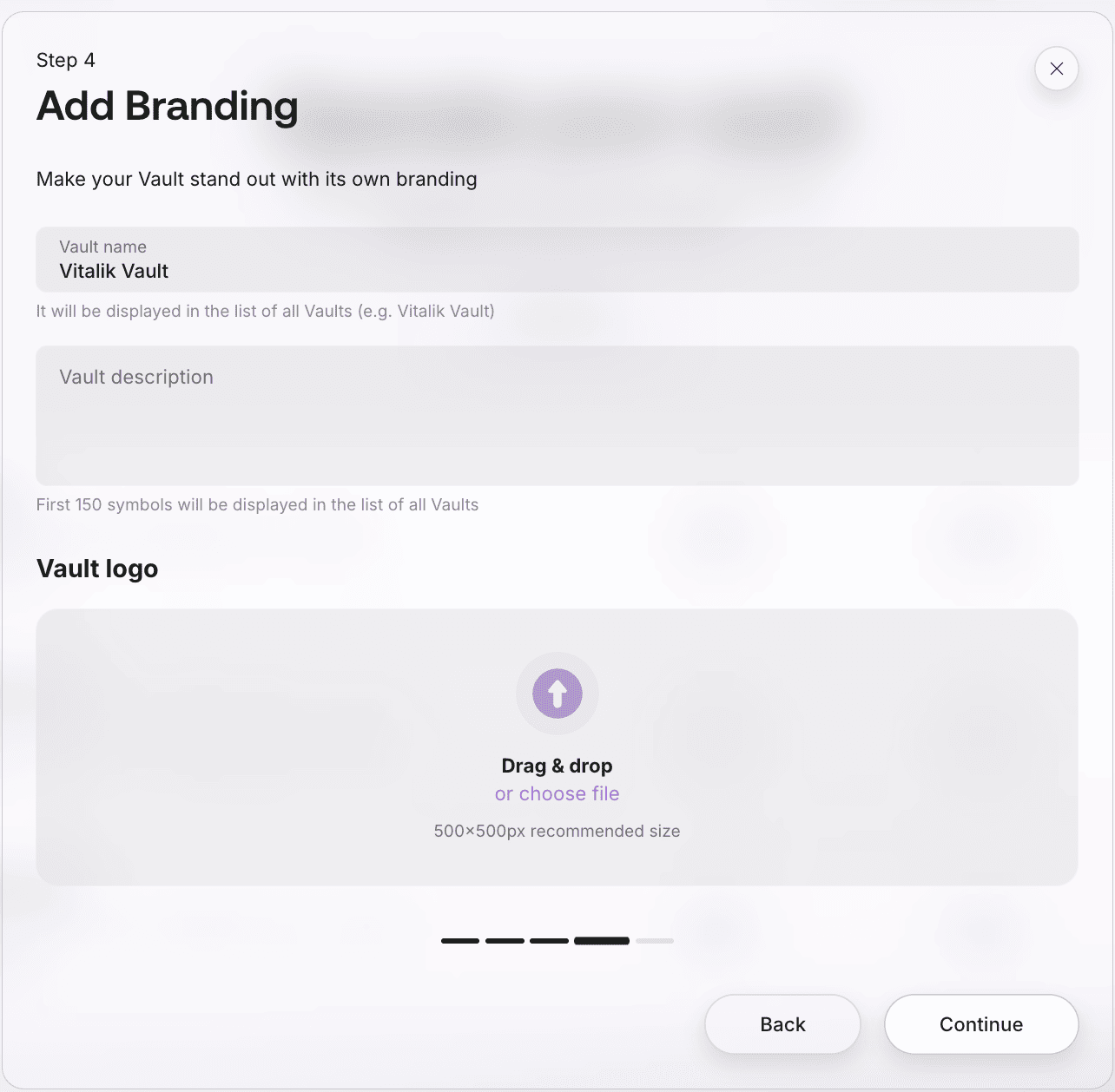
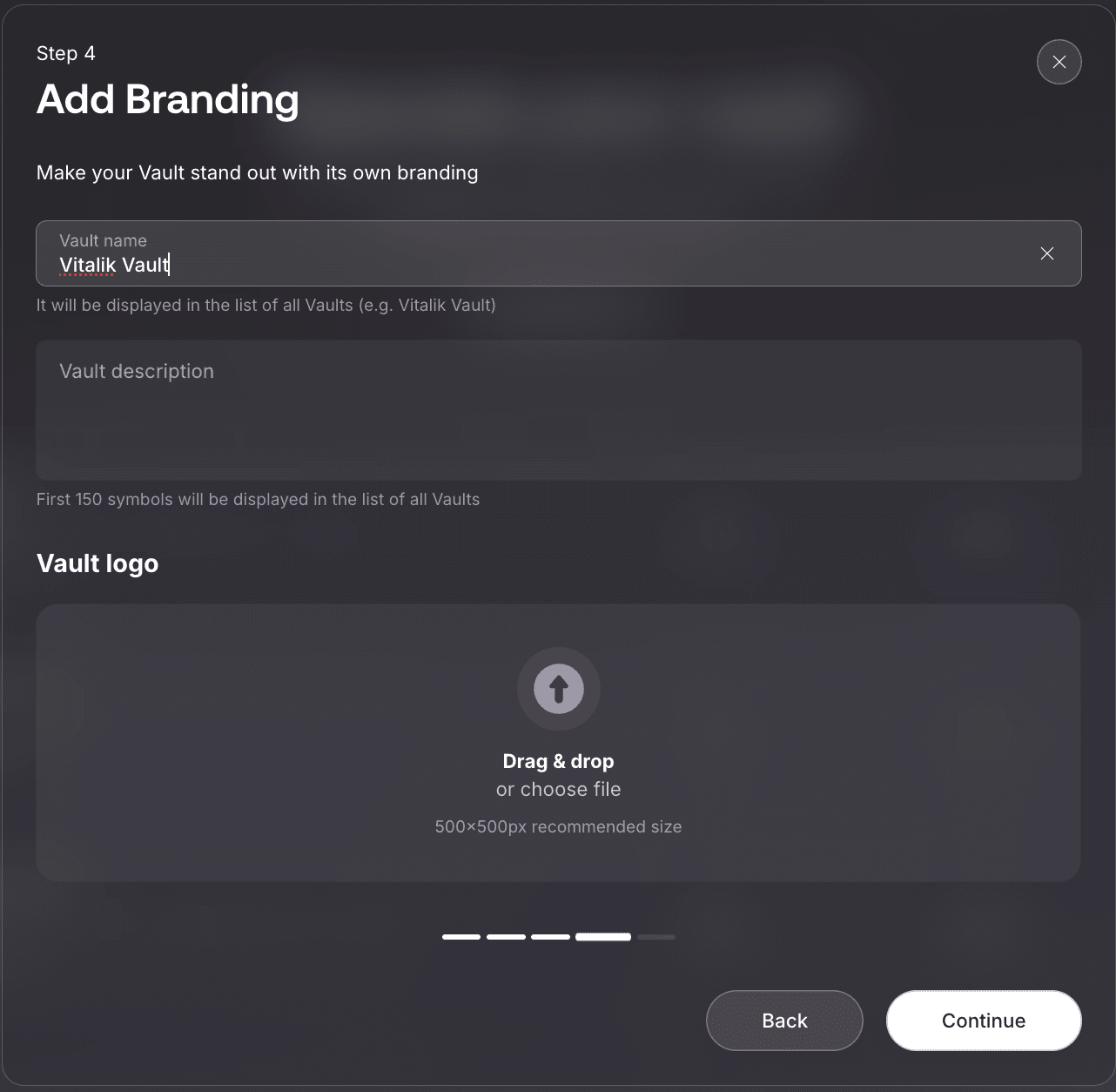
Customize your Vault's appearance with name, description, and logo.
 Branding Can Be Changed Later
Unlike Vault parameters, you can update branding anytime via your Vault interface: press Settings → Branding → Edit → Save.
Step 5: Summary
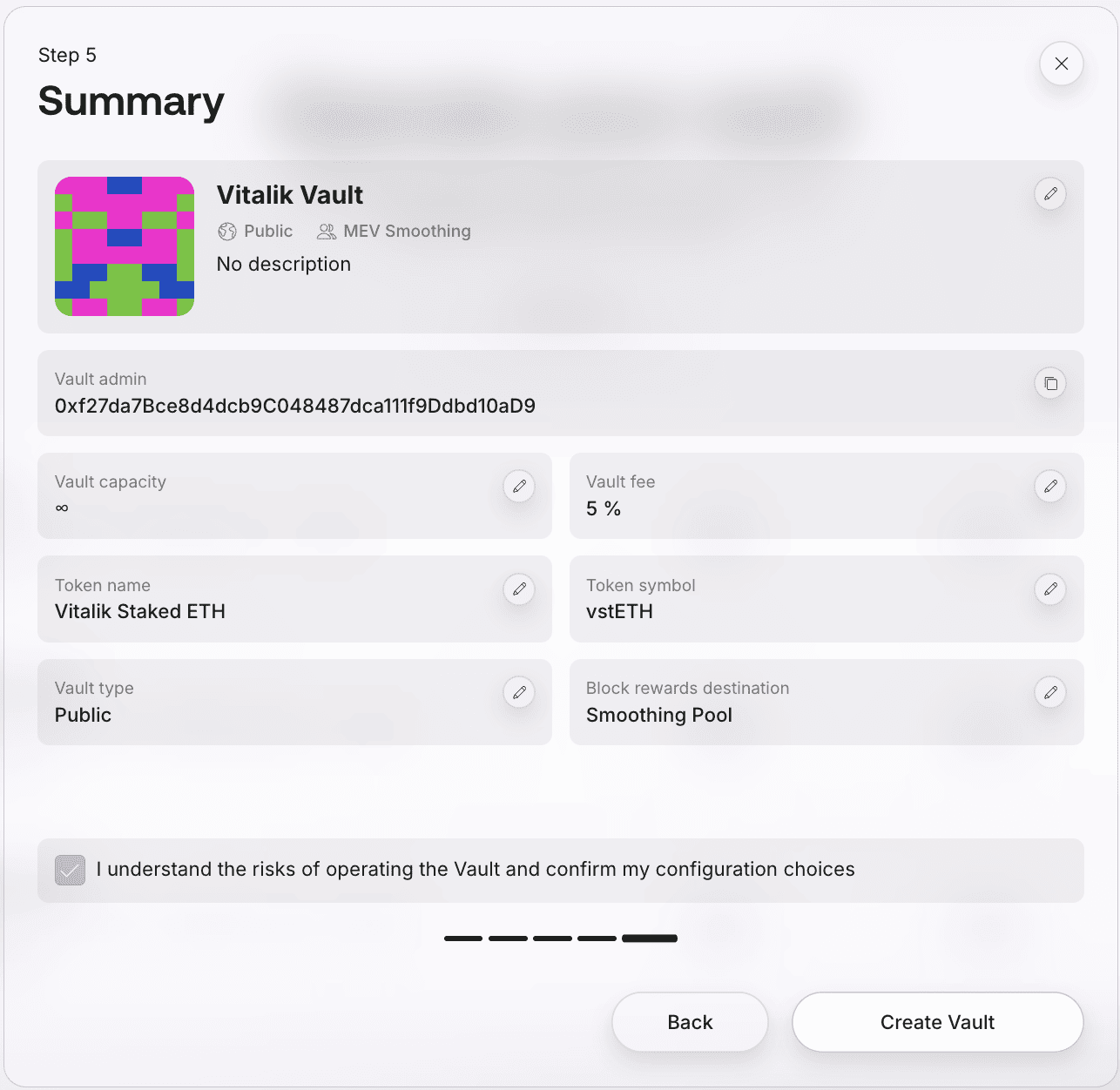
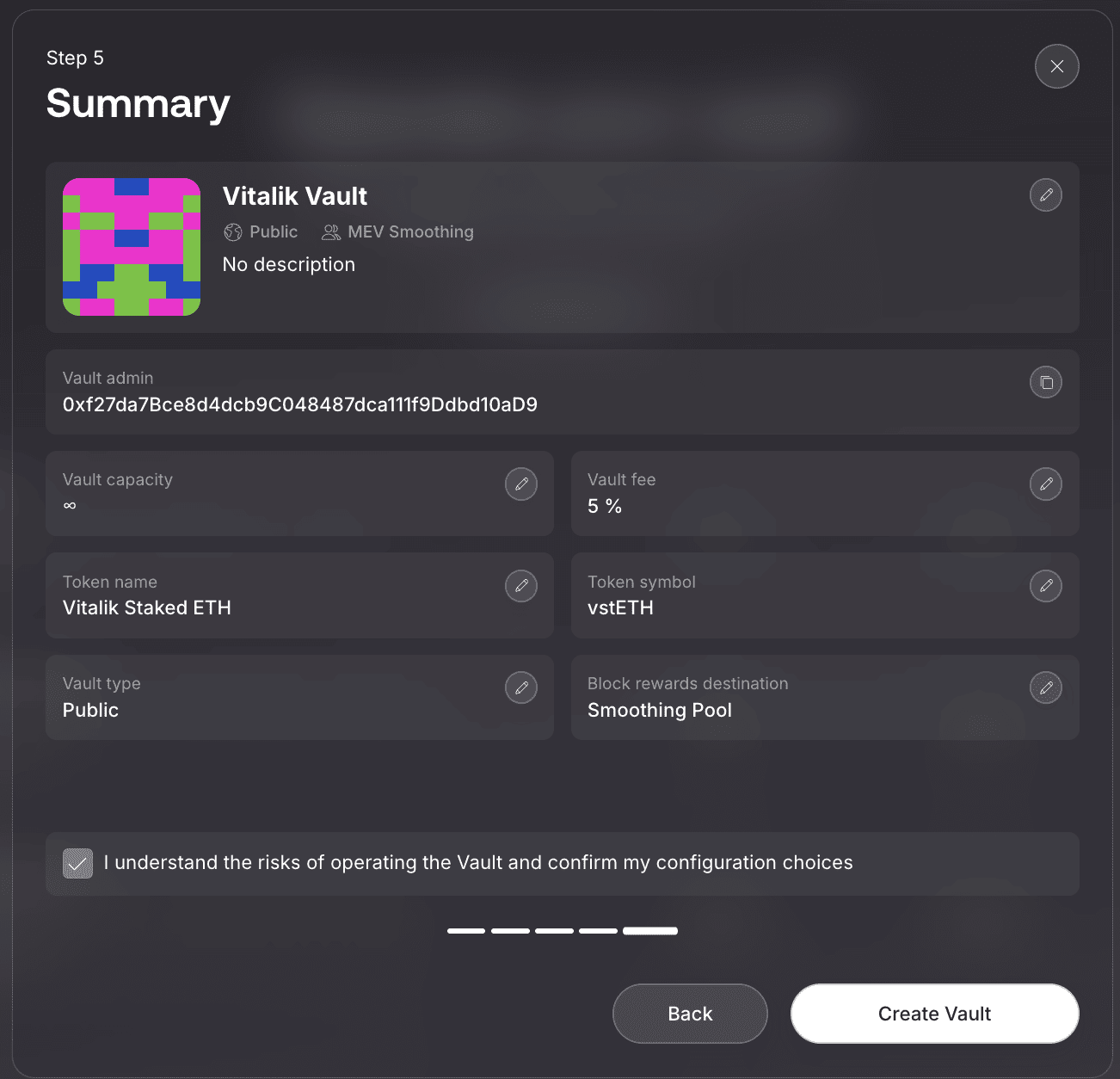
Review all your settings before final submission. This is your last chance to verify everything is correct, such as name, capacity, fees, type, and MEV strategy.
Risk Acknowledgment
You must check "I understand the risks of operating the Vault and confirm my configuration choices" before proceeding.
Click Create Vault to submit your configuration and create the Vault.
Step 6: Transaction Confirmation
Confirm the transaction in your wallet to deploy your Vault. Once the transaction confirms, your Vault is live and visible on the Operate page! 🎉
Step 7: Set Up Infrastructure
To start accepting ETH in your Vault, your infrastructure must be properly set up.
 Setup difficulty: Moderate – requires running Ethereum nodes and basic command-line familiarity.
- Execution Client – A fully synced execution client that supports the ETH Execution API specification ↗. Supported clients include Nethermind, Besu, Erigon, Geth, and Reth. Detailed setup instructions →
- Consensus Client – A fully synced consensus client that supports the ETH Beacon Node API specification ↗. Supported clients include Lighthouse, Nimbus, Prysm, Teku, and Lodestar. Detailed setup instructions →
- MEV-Boost – Set up MEV-Boost ↗ to capture execution layer rewards. If your Vault uses the Smoothing Pool, you must use one of the StakeWise DAO-approved MEV relays. Learn about MEV strategy options → and Smoothing Pool relays →
- Operator Service – Specialized software that automates essential validator management tasks for your Vault, such as validator registrations, withdrawals, state updates, and fee claims. The Operator Service runs seamlessly with any node setup, supporting your preferred execution and consensus clients, MEV relay, and distributed validator technology. Complete setup guide →
- Running Validators – Upload the allocated validator keys to the validator client and start it. The validators will be registered automatically via the Operator Service.
Next Steps
Manage Vault settings – Update branding, adjust fees, and assign roles in Vault Administration →
Reach out to the StakeWise team for Vault verification (better visibility and trust with potential stakers)